Keyboard Navigation And Focus Management For Flutter Web And Desktop
Summary
Summary

This tutorial covers practical keyboard navigation and focus management for Flutter web and desktop: Focus/FocusNode basics, Shortcuts/Actions for accelerators, advanced traversal policies, and testing/accessibility tips to build keyboard-first experiences beyond mobile development.

This tutorial covers practical keyboard navigation and focus management for Flutter web and desktop: Focus/FocusNode basics, Shortcuts/Actions for accelerators, advanced traversal policies, and testing/accessibility tips to build keyboard-first experiences beyond mobile development.

Key insights:
Key insights:
  • Focus Basics And Widgets: Use Focus, FocusNode, and FocusScope to manage per-widget and grouped focus; requestFocus/unfocus programmatically and provide visible focus cues.

  • Handling Keyboard Shortcuts: Use Shortcuts and Actions to map key combinations to reusable Intents and behaviors, enabling global and local accelerators.

  • Advanced Focus Traversal: Control Tab and arrow navigation with FocusTraversalGroup and traversal policies; use FocusTraversalOrder to define explicit tab order.

  • Testing And Accessibility: Simulate key events in tests, assert focus state, and provide semantics and visible focus indicators for a11y.

  • Focus Visuals And Integration: Combine FocusableActionDetector and onShowFocusHighlight to render clear focus rings and integrate shortcuts with menus and commands.

Introduction

As Flutter expands beyond mobile, keyboard navigation and focus management become essential for web and desktop apps. Mobile development idioms (touch-first, simple focus) don’t translate directly: users expect tab/arrow navigation, keyboard shortcuts, and consistent focus visuals. This article shows pragmatic patterns using Flutter’s Focus, FocusTraversalGroup, Shortcuts, and Actions to build accessible, keyboard-first interfaces.

Focus Basics And Widgets

Focus behavior in Flutter is modeled around FocusNode and FocusScope. Wrap interactive widgets with Focus or FocusableActionDetector where you need to receive key events or show focus highlights. Use FocusNode to imperatively request or unfocus fields; use FocusScope to manage a group of focusable children and to move focus programmatically.

Key widgets and classes:

  • Focus: attaches a FocusNode to a subtree.

  • FocusScope / FocusScopeNode: groups and moves focus.

  • FocusTraversalGroup: controls traversal policy (order and direction).

  • FocusableActionDetector: combines focus, hover, and actions for custom controls.

Example: attach a Focus and show visual state.

final FocusNode node = FocusNode();

Focus(
  focusNode: node,
  child: Builder(builder: (context) {
    final hasFocus = Focus.of(context).hasFocus;
    return Container(
      padding: EdgeInsets.all(8),
      decoration: BoxDecoration(border: Border.all(color: hasFocus ? Colors.blue : Colors.grey)),
      child: Text('Press Tab to focus'),
    );
  }),
);

Call node.requestFocus() to move focus programmatically, and node.unfocus() to release it. Dispose nodes in stateful widgets.

Handling Keyboard Shortcuts

Shortcuts and Actions decouple key combos from behavior. Define a Shortcuts map from LogicalKeySet to an Intent, then bind the Intent to an Action implementation. This approach scales for desktop-level command patterns and supports platform conventions (e.g., Cmd/Ctrl modifiers).

Tips:

  • Localize Shortcuts/Actions for widgets that need custom behavior.

  • Use LogicalKeyboardKey to specify platform-independent keys.

  • Use Actions.invoke to call actions programmatically when integrating with menus or buttons.

Example: basic Shortcuts + Actions mapping.

final Map<LogicalKeySet, Intent> shortcuts = {
  LogicalKeySet(LogicalKeyboardKey.control, LogicalKeyboardKey.keyN): const Intent('new'),
};

Actions(
  actions: {Intent: CallbackAction(onInvoke: (_) => createNew())},
  child: Shortcuts(shortcuts: shortcuts, child: appBody),
);

This pattern keeps key logic separate from UI and makes it trivial to wire up global accelerator keys.

Advanced Focus Traversal

On web and desktop, users expect directional navigation (arrow keys) and logical tab order. Flutter provides several traversal policies:

  • ReadingOrderTraversalPolicy: default for many apps.

  • WidgetOrderTraversalPolicy: order of widget insertion.

  • OrderedTraversalPolicy: respects FocusTraversalOrder wrappers (NumericFocusOrder, LexicalFocusOrder).

Use FocusTraversalGroup to override traversal in subtrees. Wrap custom grids or toolbars in a FocusTraversalGroup and implement a custom FocusTraversalPolicy if default semantics don’t match your UI.

Practical tips:

  • Use FocusTraversalOrder to control Tab order when layout order differs.

  • For grids, consider implementing directional traversal that maps arrow keys to matrix moves.

  • Combine FocusableActionDetector with onShowFocusHighlight to render clear focus rings.

Testing And Accessibility

Keyboard and focus behaviors must be tested. Flutter’s integration tests can simulate key events via tester.sendKeyEvent or dispatching RawKeyboardEvents. Write tests that assert focus changes and that actions fire on the expected key combos.

Accessibility notes:

  • Provide clear focus visuals and programmatic focus changes for screen readers.

  • Announce focus changes with Semantics where appropriate.

  • Respect platform modifiers and locale-specific shortcuts.

Example test snippet idea (pseudo): send a Tab key press and assert a widget has focus; verify Actions invoked when sending the shortcut modifier keys.

Vibe Studio
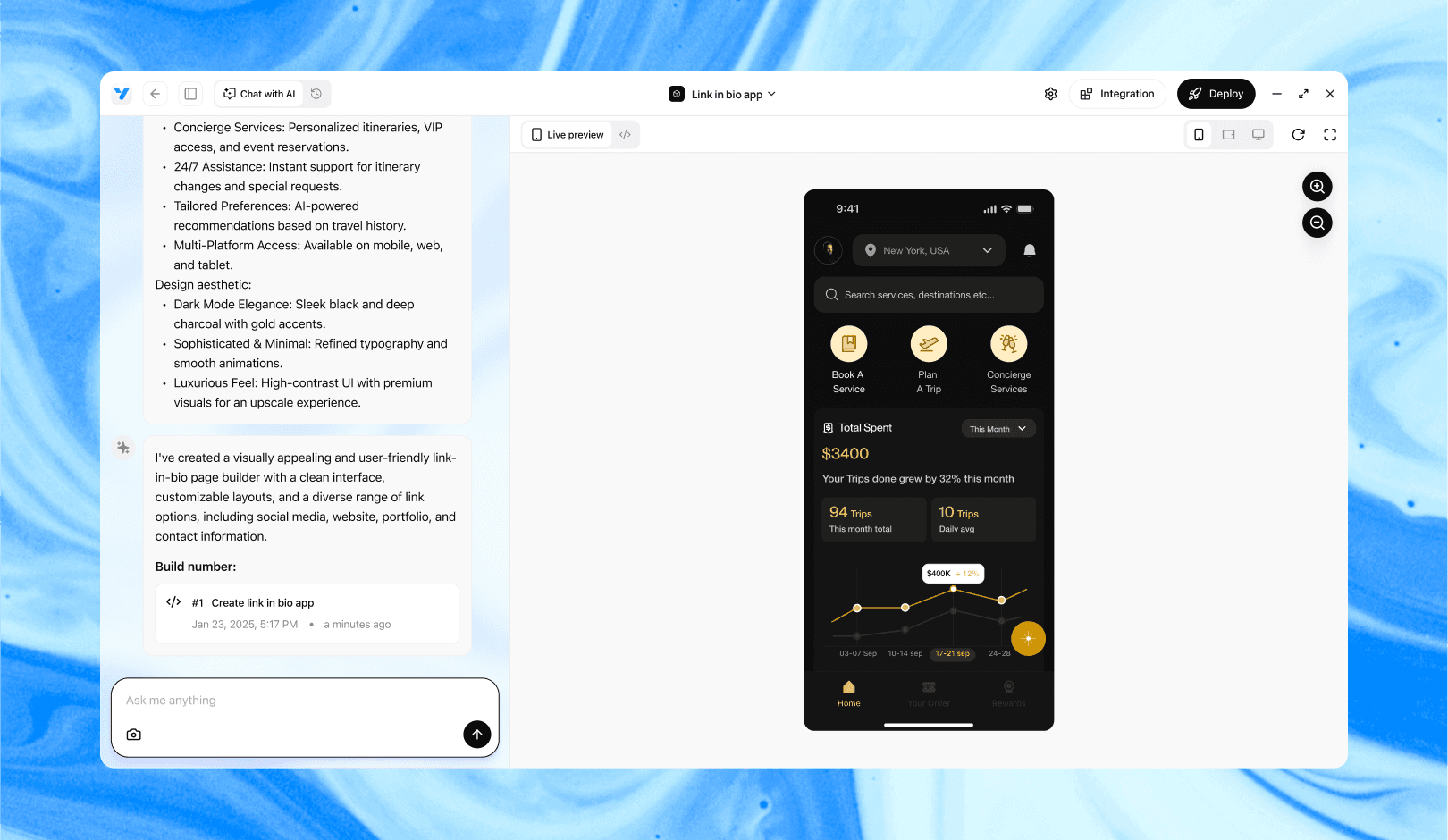
Vibe Studio, powered by Steve’s advanced AI agents, is a revolutionary no-code, conversational platform that empowers users to quickly and efficiently create full-stack Flutter applications integrated seamlessly with Firebase backend services. Ideal for solo founders, startups, and agile engineering teams, Vibe Studio allows users to visually manage and deploy Flutter apps, greatly accelerating the development process. The intuitive conversational interface simplifies complex development tasks, making app creation accessible even for non-coders.

Conclusion

Keyboard navigation and focus management are fundamental for high-quality Flutter web and desktop apps. Use Focus, FocusScope, FocusTraversalGroup, Shortcuts, and Actions together: Focus for per-widget state, FocusTraversalGroup to shape tab/arrow order, and Shortcuts/Actions to implement accelerators. Test focus pathways and provide visible, accessible cues. These patterns let you move beyond mobile development assumptions and deliver desktop-grade UX with Flutter.

Introduction

As Flutter expands beyond mobile, keyboard navigation and focus management become essential for web and desktop apps. Mobile development idioms (touch-first, simple focus) don’t translate directly: users expect tab/arrow navigation, keyboard shortcuts, and consistent focus visuals. This article shows pragmatic patterns using Flutter’s Focus, FocusTraversalGroup, Shortcuts, and Actions to build accessible, keyboard-first interfaces.

Focus Basics And Widgets

Focus behavior in Flutter is modeled around FocusNode and FocusScope. Wrap interactive widgets with Focus or FocusableActionDetector where you need to receive key events or show focus highlights. Use FocusNode to imperatively request or unfocus fields; use FocusScope to manage a group of focusable children and to move focus programmatically.

Key widgets and classes:

  • Focus: attaches a FocusNode to a subtree.

  • FocusScope / FocusScopeNode: groups and moves focus.

  • FocusTraversalGroup: controls traversal policy (order and direction).

  • FocusableActionDetector: combines focus, hover, and actions for custom controls.

Example: attach a Focus and show visual state.

final FocusNode node = FocusNode();

Focus(
  focusNode: node,
  child: Builder(builder: (context) {
    final hasFocus = Focus.of(context).hasFocus;
    return Container(
      padding: EdgeInsets.all(8),
      decoration: BoxDecoration(border: Border.all(color: hasFocus ? Colors.blue : Colors.grey)),
      child: Text('Press Tab to focus'),
    );
  }),
);

Call node.requestFocus() to move focus programmatically, and node.unfocus() to release it. Dispose nodes in stateful widgets.

Handling Keyboard Shortcuts

Shortcuts and Actions decouple key combos from behavior. Define a Shortcuts map from LogicalKeySet to an Intent, then bind the Intent to an Action implementation. This approach scales for desktop-level command patterns and supports platform conventions (e.g., Cmd/Ctrl modifiers).

Tips:

  • Localize Shortcuts/Actions for widgets that need custom behavior.

  • Use LogicalKeyboardKey to specify platform-independent keys.

  • Use Actions.invoke to call actions programmatically when integrating with menus or buttons.

Example: basic Shortcuts + Actions mapping.

final Map<LogicalKeySet, Intent> shortcuts = {
  LogicalKeySet(LogicalKeyboardKey.control, LogicalKeyboardKey.keyN): const Intent('new'),
};

Actions(
  actions: {Intent: CallbackAction(onInvoke: (_) => createNew())},
  child: Shortcuts(shortcuts: shortcuts, child: appBody),
);

This pattern keeps key logic separate from UI and makes it trivial to wire up global accelerator keys.

Advanced Focus Traversal

On web and desktop, users expect directional navigation (arrow keys) and logical tab order. Flutter provides several traversal policies:

  • ReadingOrderTraversalPolicy: default for many apps.

  • WidgetOrderTraversalPolicy: order of widget insertion.

  • OrderedTraversalPolicy: respects FocusTraversalOrder wrappers (NumericFocusOrder, LexicalFocusOrder).

Use FocusTraversalGroup to override traversal in subtrees. Wrap custom grids or toolbars in a FocusTraversalGroup and implement a custom FocusTraversalPolicy if default semantics don’t match your UI.

Practical tips:

  • Use FocusTraversalOrder to control Tab order when layout order differs.

  • For grids, consider implementing directional traversal that maps arrow keys to matrix moves.

  • Combine FocusableActionDetector with onShowFocusHighlight to render clear focus rings.

Testing And Accessibility

Keyboard and focus behaviors must be tested. Flutter’s integration tests can simulate key events via tester.sendKeyEvent or dispatching RawKeyboardEvents. Write tests that assert focus changes and that actions fire on the expected key combos.

Accessibility notes:

  • Provide clear focus visuals and programmatic focus changes for screen readers.

  • Announce focus changes with Semantics where appropriate.

  • Respect platform modifiers and locale-specific shortcuts.

Example test snippet idea (pseudo): send a Tab key press and assert a widget has focus; verify Actions invoked when sending the shortcut modifier keys.

Vibe Studio

Vibe Studio, powered by Steve’s advanced AI agents, is a revolutionary no-code, conversational platform that empowers users to quickly and efficiently create full-stack Flutter applications integrated seamlessly with Firebase backend services. Ideal for solo founders, startups, and agile engineering teams, Vibe Studio allows users to visually manage and deploy Flutter apps, greatly accelerating the development process. The intuitive conversational interface simplifies complex development tasks, making app creation accessible even for non-coders.

Conclusion

Keyboard navigation and focus management are fundamental for high-quality Flutter web and desktop apps. Use Focus, FocusScope, FocusTraversalGroup, Shortcuts, and Actions together: Focus for per-widget state, FocusTraversalGroup to shape tab/arrow order, and Shortcuts/Actions to implement accelerators. Test focus pathways and provide visible, accessible cues. These patterns let you move beyond mobile development assumptions and deliver desktop-grade UX with Flutter.

Build Flutter Apps Faster with Vibe Studio

Vibe Studio is your AI-powered Flutter development companion. Skip boilerplate, build in real-time, and deploy without hassle. Start creating apps at lightning speed with zero setup.

Other Insights

Join a growing community of builders today

Join a growing community of builders today

Join a growing community of builders today

Join a growing community of builders today

Join a growing community of builders today

28-07 Jackson Ave

Walturn

New York NY 11101 United States

© Steve • All Rights Reserved 2025

28-07 Jackson Ave

Walturn

New York NY 11101 United States

© Steve • All Rights Reserved 2025

28-07 Jackson Ave

Walturn

New York NY 11101 United States

© Steve • All Rights Reserved 2025

28-07 Jackson Ave

Walturn

New York NY 11101 United States

© Steve • All Rights Reserved 2025

28-07 Jackson Ave

Walturn

New York NY 11101 United States

© Steve • All Rights Reserved 2025

28-07 Jackson Ave

Walturn

New York NY 11101 United States

© Steve • All Rights Reserved 2025