Introduction
Live charts in Flutter must balance visual fidelity with runtime performance. Mobile development constraints—limited CPU, battery and single-threaded rendering—mean naive approaches will drop frames as data streams in. This tutorial focuses on two complementary techniques: efficient sampling to reduce data volume and efficient painting to minimize UI work. You will learn practical patterns that keep charts smooth without sacrificing the ability to show real-time updates.
Efficient Data Sampling
The first performance win is reducing the number of points you draw. Two common approaches are decimation (fixed-window averaging or picking) and more sophisticated downsampling like LTTB (Largest Triangle Three Buckets). For most live cases a simple fixed-size ring buffer plus aggregation is enough: keep N display points and merge incoming samples into buckets per pixel or per time-slice.
Keep sampling logic off the main paint path. Use an isolate or a background micro-task to aggregate raw samples into a small array. When the sampler produces a new frame of N points, push that into the UI layer as a compact payload (List or Float32List). This reduces GC churn and copy overhead.
Example: a minimal ring buffer sampler
class RingSampler {
  final int capacity;
  final Float32List buffer;
  int idx = 0;
  RingSampler(this.capacity) : buffer = Float32List(capacity * 2);
  void add(double x, double y) {
    buffer[idx++] = x;
    buffer[idx++] = y;
    if (idx >= buffer.length) idx = 0;
  }
}
This produces a compact representation you can downsample further before drawing.
Custom Painting Strategies
Use CustomPainter for maximum control. But avoid recomputing layout, paths or paints on every frame. Cache expensive objects:
Precompute Path or vertex buffers for the reduced dataset and store them in a Picture via PictureRecorder. A Picture can be drawn quickly by the engine.
Use Paint objects once and reuse them (don't allocate in paint).
In shouldRepaint return true only when the data reference or a version/hash changes.
A common pattern: when new sampled data arrives, compute the Path in a worker (or in the state layer synchronously if cheap), then create a Picture in the next frame and swap it into the painter. Drawing the cached Picture is lightweight.
if (cachedPicture != null) {
canvas.drawPicture(cachedPicture!);
return;
}
Avoid building complex UI primitives in paint. Flatten line joins, disable shadows and filters unless needed. Those operations force saveLayer and rasterization, which are costly.
Optimizing Repaints And Layers
Minimize the area and frequency of repaints:
Wrap the chart in a RepaintBoundary so only it repaints, not the whole screen.
Use ClipRect to bound painting to the viewport.
Only call setState when the reduced representation changes. Throttle UI updates using Duration-based coalescing or SchedulerBinding.addPostFrameCallback to group many incoming samples into one frame.
For multiple charts, share Paint and Picture caches where possible.
Layer usage: avoid saveLayer unless you need blend modes. saveLayer forces raster cache creation and endures memory overhead. If you need transparency or glow, precompose into a cached picture once and reuse it.
Profiling tips: use the Flutter performance overlay and the Timeline to see raster vs UI thread timings. Look for the “Jank” spikes and inspect shader compilations or expensive draw operations.
Integrating With Streamed Data
Wire sampled data to UI with a compact, low-overhead notifier. ValueNotifier> or a StreamSubscription feeding a stateful widget works well. Example pattern:
Background sampler accumulates and periodically emits a downsampled buffer.
Widget listens and stores the small buffer and a version id.
When version increments, compute or request a cached Picture and call setState once.
If you need sub-60fps updates on purpose (e.g., 30fps to save power), schedule updates with a Timer and drop frames between ticks.
Edge cases: When the user interacts (zoom/scroll), cancel sampling aggregation and recompute visible samples at higher resolution. On interaction end, resume low-detail live sampling.
Vibe Studio
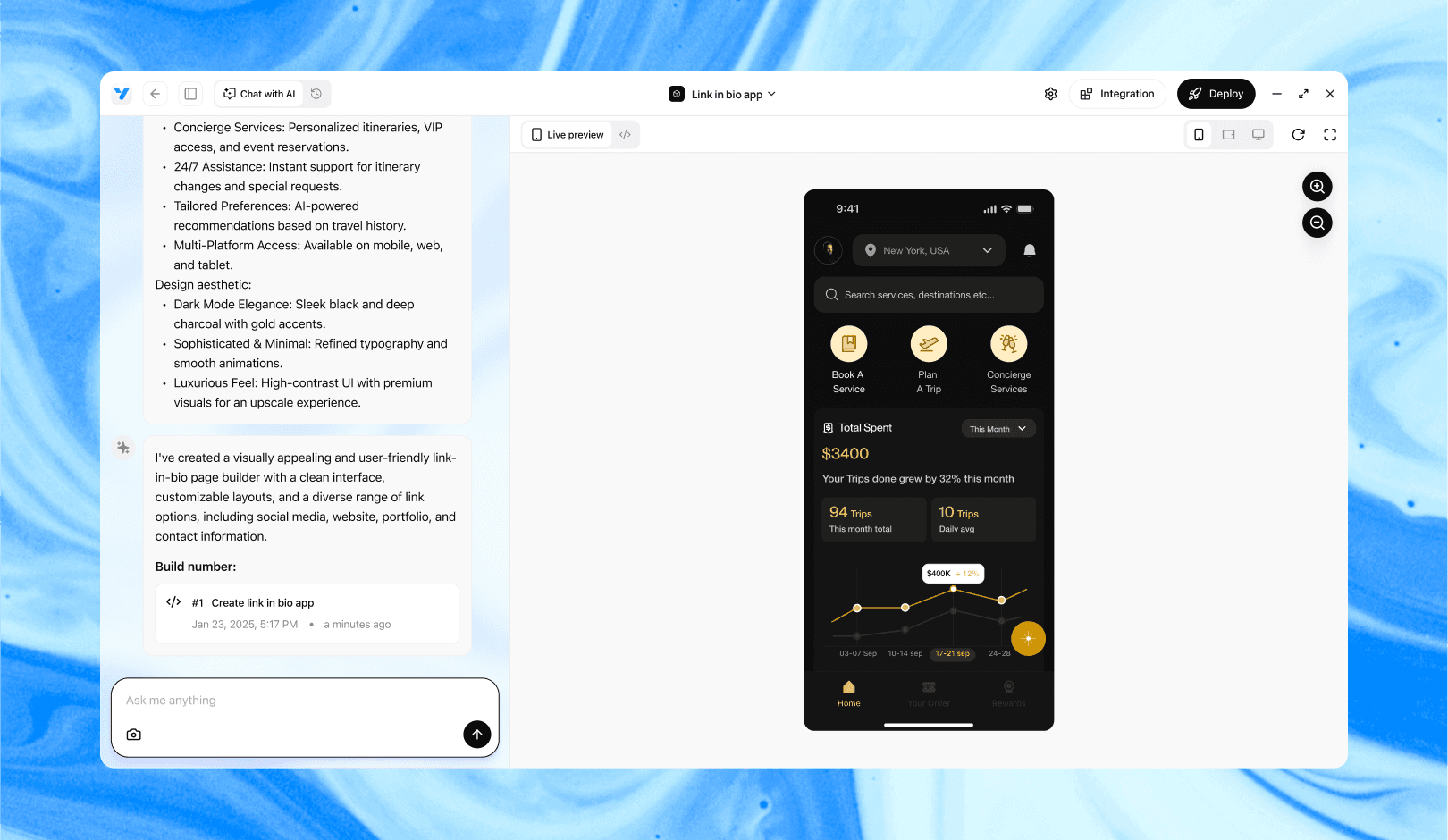
Vibe Studio, powered by Steve’s advanced AI agents, is a revolutionary no-code, conversational platform that empowers users to quickly and efficiently create full-stack Flutter applications integrated seamlessly with Firebase backend services. Ideal for solo founders, startups, and agile engineering teams, Vibe Studio allows users to visually manage and deploy Flutter apps, greatly accelerating the development process. The intuitive conversational interface simplifies complex development tasks, making app creation accessible even for non-coders.
Conclusion
Implementing smooth live charts on Flutter requires two disciplined efforts: reduce the volume of drawn data through sampling, and reduce the painting cost with caching and careful layer use. Keep heavy work off the paint method, reuse Paint and Picture objects, and throttle UI updates. These techniques together keep mobile development charts responsive and battery-friendly while still delivering real-time insights.