Generating PDFs In Flutter With Tables Charts And Images
Summary
Summary

This tutorial demonstrates generating PDFs in Flutter using the pdf and printing packages. It covers setup, building tables with pw.Table, capturing chart widgets as images via RepaintBoundary to embed in PDFs, handling images, export options (share, print, save), and performance tips for mobile development.

This tutorial demonstrates generating PDFs in Flutter using the pdf and printing packages. It covers setup, building tables with pw.Table, capturing chart widgets as images via RepaintBoundary to embed in PDFs, handling images, export options (share, print, save), and performance tips for mobile development.

Key insights:
Key insights:
  • Setup And Dependencies: Use the pdf and printing packages to build and export PDFs on Flutter mobile projects.

  • Creating Tables And Layouts: pw.Table.fromTextArray and page themes simplify readable tabular layouts across pages.

  • Adding Charts: Capture Flutter chart widgets as images (RepaintBoundary) and embed them for high-fidelity charts in PDFs.

  • Embedding Images: Convert images to Uint8List and use pw.MemoryImage; downscale large images to save space and improve performance.

  • Exporting And Performance: Prefer Printing.layoutPdf/sharePdf for mobile flows, batch pdf.save(), and tune pixelRatio for chart clarity.

Introduction

Generating PDFs in Flutter is a common requirement for mobile development tasks like invoicing, reporting, and archiving. This tutorial shows a practical, code-forward approach to produce PDFs that include tables, charts, and images. We’ll use the popular pdf and printing packages for PDF creation and show how to capture Flutter widgets (charts) as images to embed them into the PDF. The focus is pragmatic: minimal dependencies, clear layout control, and reliable export on Android and iOS.

Setup And Dependencies

Start by adding two packages to pubspec.yaml:

  • pdf: for building documents on the Dart side (package:pdf)

  • printing: for saving, previewing, and sharing PDFs (package:printing)

Import them when building PDFs:

import 'package:pdf/widgets.dart' as pw; import 'package:printing/printing.dart';

You’ll also need dart:ui for converting RenderRepaintBoundary output to image bytes when you capture charts or complex widgets. For saved files, use path_provider if you must write to disk; for most mobile workflows, Printing.sharePdf or Printing.layoutPdf is sufficient.

Creating Tables And Complex Layouts

The pdf package provides pw.Table and helper methods like pw.Table.fromTextArray for quick tabular data. Use pw.Page with pageFormat to control margins and orientation. Pay attention to font sizing and column widths for readability on mobile-sized pages.

Example: build a simple invoice table and add header/footer elements. Use flexible widgets (pw.Expanded, pw.Flexible) to keep column layout consistent. For large tables, split rows across pages automatically by adding multiple pw.Page objects or using pw.ListView style layouts.

final pdf = pw.Document();
pdf.addPage(pw.Page(pageFormat: PdfPageFormat.a4, build: (c) {
  return pw.Column(children: [
    pw.Text('Invoice', style: pw.TextStyle(fontSize: 18)),
    pw.SizedBox(height: 10),
    pw.Table.fromTextArray(data: <List<String>>[
      <String>

Keep tables readable: avoid too many columns on narrow paper, wrap long text into multiple lines (pw.Wrap or break manually), and consider landscape orientation for wide tables.

Adding Charts

Charts are often rendered as Flutter widgets (e.g., charts_flutter, fl_chart). The easiest and most compatible way to include them in a pdf is to render the chart widget to an image and then insert the PNG into the pdf as a pw.MemoryImage. Use a GlobalKey on a RepaintBoundary and convert the boundary to bytes.

Capture snippet:

Future<Uint8List> captureWidget(GlobalKey key) async {
  final boundary = key.currentContext!.findRenderObject() as RenderRepaintBoundary;
  final img = await boundary.toImage(pixelRatio: 3.0);
  final bytes = await img.toByteData(format: ImageByteFormat.png);
  return bytes!.buffer.asUint8List();
}

Once you have chartBytes, embed them with pw.Image. Use a high pixelRatio for crispness on print. If you need dynamic drawing to the PDF canvas, you can also draw simple charts directly with the pdf package's primitive drawing methods, but widget capture offers the fastest integration for existing chart widgets.

Embedding Images And Exporting

Images can come from network, assets, or captured widgets. Convert any image to Uint8List and use pw.MemoryImage to place it. For large images, scale them with pw.Box or pw.FittedBox-like constructs to preserve aspect ratio.

Export options:

  • Printing.layoutPdf: show the native print preview; good for printing and PDF generation flows.

  • Printing.sharePdf: share via native share sheet.

  • Write bytes to file with path_provider if persistent storage is required.

Performance tips:

  • Avoid embedding huge, uncompressed images; downscale before embedding.

  • Reuse fonts and style definitions with pw.ThemeData to avoid per-page recalculation.

  • Batch pdf.save() once when all pages are added; saving is synchronous on the Dart side and returns bytes.

Example embed flow: capture chart widget, build PDF with table and chart image, then share.

Vibe Studio
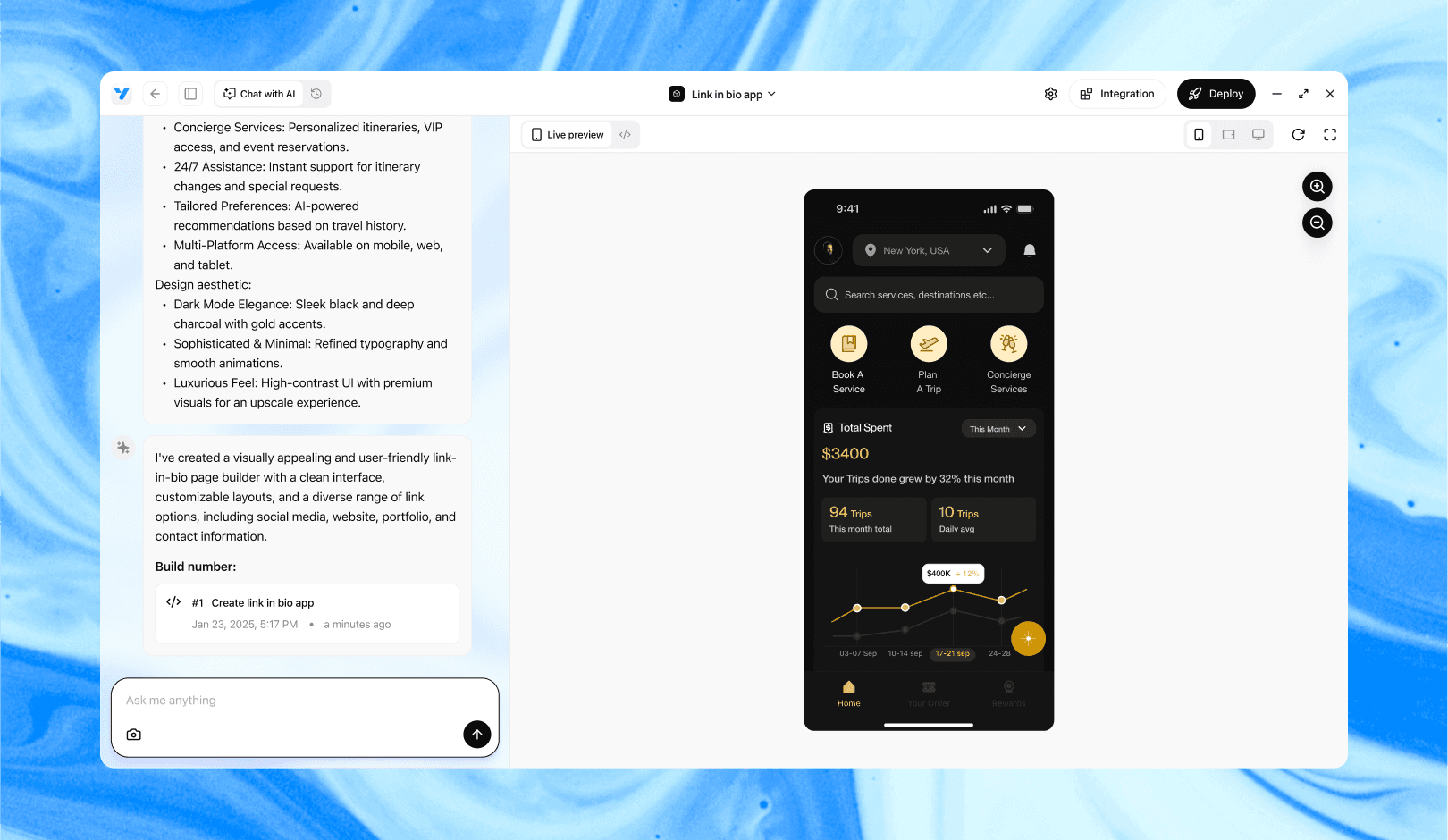
Vibe Studio, powered by Steve’s advanced AI agents, is a revolutionary no-code, conversational platform that empowers users to quickly and efficiently create full-stack Flutter applications integrated seamlessly with Firebase backend services. Ideal for solo founders, startups, and agile engineering teams, Vibe Studio allows users to visually manage and deploy Flutter apps, greatly accelerating the development process. The intuitive conversational interface simplifies complex development tasks, making app creation accessible even for non-coders.

Conclusion

Generating PDFs with tables, charts, and images in Flutter is straightforward when you combine the pdf and printing packages with widget-to-image capture. Use pw.Table utilities for tabular data, capture chart widgets as PNGs for fidelity, and handle images with pw.MemoryImage. Focus on layout (margins, orientation, font sizes) and image sizing to produce professional, printable documents for mobile development use cases. With these patterns you can build invoices, analytics reports, and exportable documents that work reliably on both Android and iOS.

Introduction

Generating PDFs in Flutter is a common requirement for mobile development tasks like invoicing, reporting, and archiving. This tutorial shows a practical, code-forward approach to produce PDFs that include tables, charts, and images. We’ll use the popular pdf and printing packages for PDF creation and show how to capture Flutter widgets (charts) as images to embed them into the PDF. The focus is pragmatic: minimal dependencies, clear layout control, and reliable export on Android and iOS.

Setup And Dependencies

Start by adding two packages to pubspec.yaml:

  • pdf: for building documents on the Dart side (package:pdf)

  • printing: for saving, previewing, and sharing PDFs (package:printing)

Import them when building PDFs:

import 'package:pdf/widgets.dart' as pw; import 'package:printing/printing.dart';

You’ll also need dart:ui for converting RenderRepaintBoundary output to image bytes when you capture charts or complex widgets. For saved files, use path_provider if you must write to disk; for most mobile workflows, Printing.sharePdf or Printing.layoutPdf is sufficient.

Creating Tables And Complex Layouts

The pdf package provides pw.Table and helper methods like pw.Table.fromTextArray for quick tabular data. Use pw.Page with pageFormat to control margins and orientation. Pay attention to font sizing and column widths for readability on mobile-sized pages.

Example: build a simple invoice table and add header/footer elements. Use flexible widgets (pw.Expanded, pw.Flexible) to keep column layout consistent. For large tables, split rows across pages automatically by adding multiple pw.Page objects or using pw.ListView style layouts.

final pdf = pw.Document();
pdf.addPage(pw.Page(pageFormat: PdfPageFormat.a4, build: (c) {
  return pw.Column(children: [
    pw.Text('Invoice', style: pw.TextStyle(fontSize: 18)),
    pw.SizedBox(height: 10),
    pw.Table.fromTextArray(data: <List<String>>[
      <String>

Keep tables readable: avoid too many columns on narrow paper, wrap long text into multiple lines (pw.Wrap or break manually), and consider landscape orientation for wide tables.

Adding Charts

Charts are often rendered as Flutter widgets (e.g., charts_flutter, fl_chart). The easiest and most compatible way to include them in a pdf is to render the chart widget to an image and then insert the PNG into the pdf as a pw.MemoryImage. Use a GlobalKey on a RepaintBoundary and convert the boundary to bytes.

Capture snippet:

Future<Uint8List> captureWidget(GlobalKey key) async {
  final boundary = key.currentContext!.findRenderObject() as RenderRepaintBoundary;
  final img = await boundary.toImage(pixelRatio: 3.0);
  final bytes = await img.toByteData(format: ImageByteFormat.png);
  return bytes!.buffer.asUint8List();
}

Once you have chartBytes, embed them with pw.Image. Use a high pixelRatio for crispness on print. If you need dynamic drawing to the PDF canvas, you can also draw simple charts directly with the pdf package's primitive drawing methods, but widget capture offers the fastest integration for existing chart widgets.

Embedding Images And Exporting

Images can come from network, assets, or captured widgets. Convert any image to Uint8List and use pw.MemoryImage to place it. For large images, scale them with pw.Box or pw.FittedBox-like constructs to preserve aspect ratio.

Export options:

  • Printing.layoutPdf: show the native print preview; good for printing and PDF generation flows.

  • Printing.sharePdf: share via native share sheet.

  • Write bytes to file with path_provider if persistent storage is required.

Performance tips:

  • Avoid embedding huge, uncompressed images; downscale before embedding.

  • Reuse fonts and style definitions with pw.ThemeData to avoid per-page recalculation.

  • Batch pdf.save() once when all pages are added; saving is synchronous on the Dart side and returns bytes.

Example embed flow: capture chart widget, build PDF with table and chart image, then share.

Vibe Studio

Vibe Studio, powered by Steve’s advanced AI agents, is a revolutionary no-code, conversational platform that empowers users to quickly and efficiently create full-stack Flutter applications integrated seamlessly with Firebase backend services. Ideal for solo founders, startups, and agile engineering teams, Vibe Studio allows users to visually manage and deploy Flutter apps, greatly accelerating the development process. The intuitive conversational interface simplifies complex development tasks, making app creation accessible even for non-coders.

Conclusion

Generating PDFs with tables, charts, and images in Flutter is straightforward when you combine the pdf and printing packages with widget-to-image capture. Use pw.Table utilities for tabular data, capture chart widgets as PNGs for fidelity, and handle images with pw.MemoryImage. Focus on layout (margins, orientation, font sizes) and image sizing to produce professional, printable documents for mobile development use cases. With these patterns you can build invoices, analytics reports, and exportable documents that work reliably on both Android and iOS.

Build Flutter Apps Faster with Vibe Studio

Vibe Studio is your AI-powered Flutter development companion. Skip boilerplate, build in real-time, and deploy without hassle. Start creating apps at lightning speed with zero setup.

Other Insights

Join a growing community of builders today

Join a growing community of builders today

Join a growing community of builders today

Join a growing community of builders today

Join a growing community of builders today

28-07 Jackson Ave

Walturn

New York NY 11101 United States

© Steve • All Rights Reserved 2025

28-07 Jackson Ave

Walturn

New York NY 11101 United States

© Steve • All Rights Reserved 2025

28-07 Jackson Ave

Walturn

New York NY 11101 United States

© Steve • All Rights Reserved 2025

28-07 Jackson Ave

Walturn

New York NY 11101 United States

© Steve • All Rights Reserved 2025

28-07 Jackson Ave

Walturn

New York NY 11101 United States

© Steve • All Rights Reserved 2025

28-07 Jackson Ave

Walturn

New York NY 11101 United States

© Steve • All Rights Reserved 2025