Building A Custom Drawing Canvas With Undo Redo And Layers
Summary
Summary

This tutorial shows how to build a Flutter drawing canvas with immutable stroke models, layered rendering, and an undo/redo command stack. Use CustomPainter with per-layer saveLayer, coalesce pointer input into single actions, limit history size, and cache static layers for mobile performance.

This tutorial shows how to build a Flutter drawing canvas with immutable stroke models, layered rendering, and an undo/redo command stack. Use CustomPainter with per-layer saveLayer, coalesce pointer input into single actions, limit history size, and cache static layers for mobile performance.

Key insights:
Key insights:
  • Heading 1: Model strokes as compact immutable objects to simplify serialization and undo.

  • Heading 2: Separate controller, model, and painter to reduce rebuilds and improve maintainability.

  • Heading 3: Use a command-style undo/redo with coalescing to treat a single stroke as one action.

  • Heading 4: Render layers using saveLayer and Paint blend modes to achieve per-layer opacity and blending.

  • Heading 5: Cache static layers (Picture) and limit history size to optimize mobile performance.

Introduction

Building a custom drawing canvas in Flutter is a common requirement for creative apps, annotation tools, and advanced mobile development workflows. This tutorial shows a practical architecture for a canvas that supports strokes, multiple layers, and reliable undo/redo. We'll focus on data modeling, history management, and performant rendering using CustomPainter — not on UI chrome. The result is modular, testable, and suitable for production mobile development.

Canvas Architecture

A clean separation between model, controller, and painter keeps the canvas maintainable. The model holds immutable stroke data and layer metadata. The controller receives touch events, updates the model, and pushes history states. The painter reads the model and draws efficiently.

Key decisions:

  • Represent strokes as compact point lists with paint properties (color, width, blend mode).

  • Keep layers as ordered lists of strokes with visibility and opacity.

  • Use ChangeNotifier or a lightweight Stream for UI updates to avoid rebuilding unrelated widgets.

Use a CustomPaint that repaints only when the model changes. Batch frequent pointer moves into a single stroke until pointer up to minimize history churn.

Stroke Modeling And Serialization

Model strokes as simple immutable objects. Include an ID to allow referencing for edits and removal. Serialization is essential for saving and implementing undo/redo via deltas.

Example Stroke model and a simple controller method to push a new stroke:

class Stroke {
  final String id;
  final List<Offset> points;
  final Color color;
  final double width;
  const Stroke(this.id, this.points, this.color, this.width);
}

void addStroke(Layer layer, Stroke stroke) {
  layer.strokes = List.of(layer.strokes)..add(stroke);
  history.push(AddStrokeCommand(layer.id, stroke));
  notifyListeners();
}

Keep strokes compact (e.g., sample points) and consider compressing when persisting. For mobile development, avoid huge point lists; resample or use cubic interpolation if you need smoother paths with fewer points.

Undo Redo And History Management

Implement the Command pattern or maintain an action stack of primitives (add, remove, modify). Two stacks (undo and redo) work well: executing an action pushes it on undo; undo pops it, applies inverse, and pushes to redo.

Design notes:

  • Represent actions as small serializable objects so long-running operations (like saving) can persist undo history.

  • Coalesce similar consecutive actions: while the user is drawing a single stroke, treat it as one action instead of many point updates.

  • Limit stack size to conserve memory; snapshot layers periodically for large changes.

Simple action interface:

  • apply(Model)

  • revert(Model)

Because mobile apps can be suspended, serialize history when appropriate. Rehydration should restore layer order and action stacks where feasible.

Layer Implementation And Blending

A layer is effectively a named container with strokes, opacity, and blend mode. Common features:

  • Ordering: topmost layer draws last.

  • Visibility: quick toggle without removing strokes.

  • Opacity and BlendMode: use Canvas.saveLayer with Paint.blendMode and alpha to composite per-layer.

Painter pattern: iterate layers, if visible create a saveLayer with a Paint whose blendMode and colorFilter/alpha implement the layer's appearance, then draw strokes.

Example CustomPainter sketch:

class CanvasPainter extends CustomPainter {
  final List<Layer> layers;
  CanvasPainter(this.layers);
  @override
  void paint(Canvas canvas, Size size) {
    for (final layer in layers) {
      if (!layer.visible) continue;
      final paint = Paint()..blendMode = layer.blendMode..color = Colors.white.withOpacity(layer.opacity);
      canvas.saveLayer(Offset.zero & size, paint);
      for (final s in layer.strokes) {
        drawStroke(canvas, s);
      }
      canvas.restore();
    }
  }
  @override bool shouldRepaint(covariant CanvasPainter old) => old.layers != layers;
}

Optimizations: cache Picture objects for static layers, invalidate only when that layer changes. On mobile, avoid redraws of unchanged areas; consider dirty-rect updates for very complex scenes.

Vibe Studio
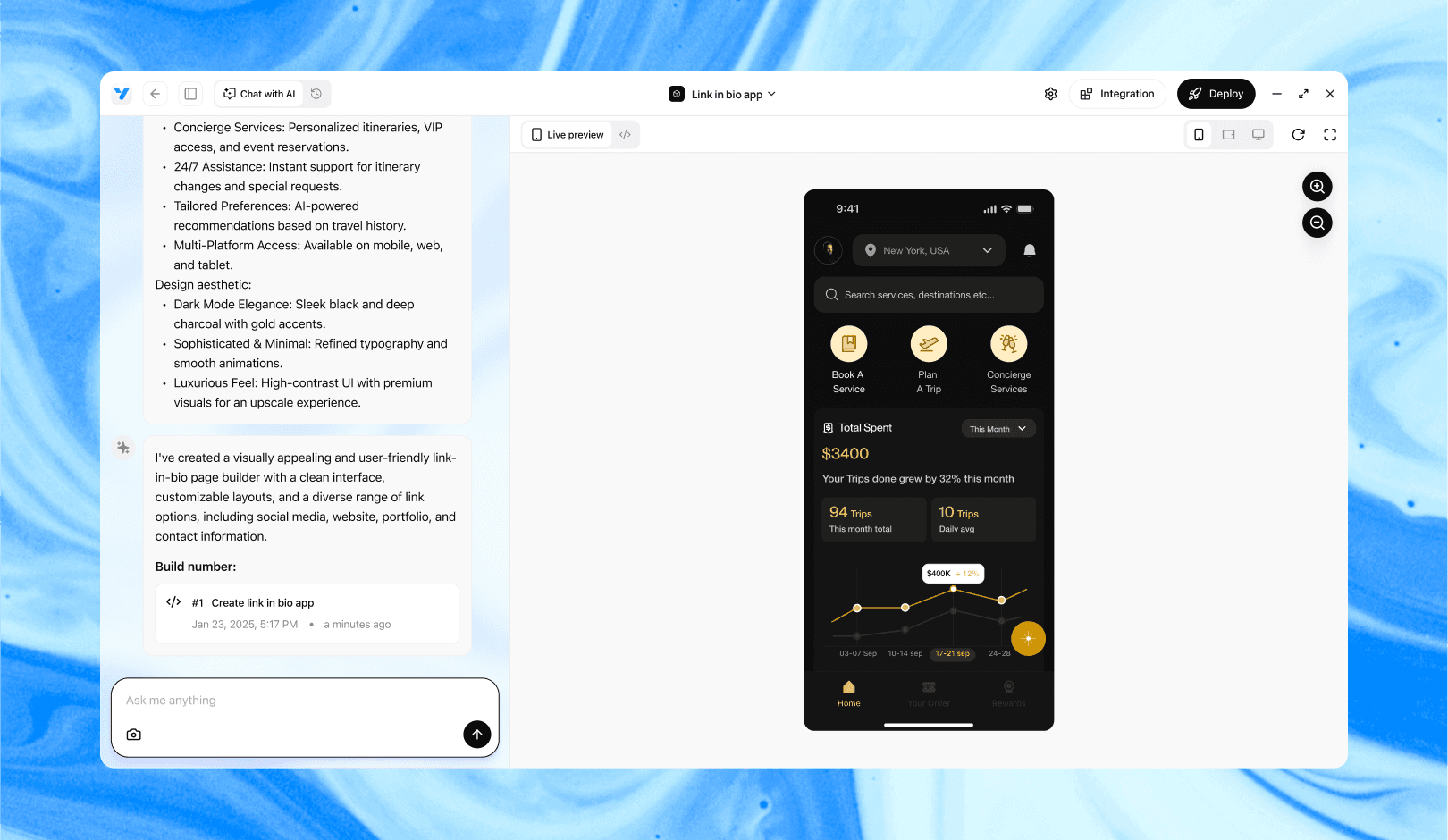
Vibe Studio, powered by Steve’s advanced AI agents, is a revolutionary no-code, conversational platform that empowers users to quickly and efficiently create full-stack Flutter applications integrated seamlessly with Firebase backend services. Ideal for solo founders, startups, and agile engineering teams, Vibe Studio allows users to visually manage and deploy Flutter apps, greatly accelerating the development process. The intuitive conversational interface simplifies complex development tasks, making app creation accessible even for non-coders.

Conclusion

A robust Flutter drawing canvas for mobile development hinges on clear separation: immutable stroke models, a controller with undo/redo command stacks, and a painter that composes layers efficiently. Prioritize coalescing input, limiting history size, and caching rendered layers. This architecture scales from simple sketch apps to advanced annotation tools and integrates well with persistence and collaboration features.

Introduction

Building a custom drawing canvas in Flutter is a common requirement for creative apps, annotation tools, and advanced mobile development workflows. This tutorial shows a practical architecture for a canvas that supports strokes, multiple layers, and reliable undo/redo. We'll focus on data modeling, history management, and performant rendering using CustomPainter — not on UI chrome. The result is modular, testable, and suitable for production mobile development.

Canvas Architecture

A clean separation between model, controller, and painter keeps the canvas maintainable. The model holds immutable stroke data and layer metadata. The controller receives touch events, updates the model, and pushes history states. The painter reads the model and draws efficiently.

Key decisions:

  • Represent strokes as compact point lists with paint properties (color, width, blend mode).

  • Keep layers as ordered lists of strokes with visibility and opacity.

  • Use ChangeNotifier or a lightweight Stream for UI updates to avoid rebuilding unrelated widgets.

Use a CustomPaint that repaints only when the model changes. Batch frequent pointer moves into a single stroke until pointer up to minimize history churn.

Stroke Modeling And Serialization

Model strokes as simple immutable objects. Include an ID to allow referencing for edits and removal. Serialization is essential for saving and implementing undo/redo via deltas.

Example Stroke model and a simple controller method to push a new stroke:

class Stroke {
  final String id;
  final List<Offset> points;
  final Color color;
  final double width;
  const Stroke(this.id, this.points, this.color, this.width);
}

void addStroke(Layer layer, Stroke stroke) {
  layer.strokes = List.of(layer.strokes)..add(stroke);
  history.push(AddStrokeCommand(layer.id, stroke));
  notifyListeners();
}

Keep strokes compact (e.g., sample points) and consider compressing when persisting. For mobile development, avoid huge point lists; resample or use cubic interpolation if you need smoother paths with fewer points.

Undo Redo And History Management

Implement the Command pattern or maintain an action stack of primitives (add, remove, modify). Two stacks (undo and redo) work well: executing an action pushes it on undo; undo pops it, applies inverse, and pushes to redo.

Design notes:

  • Represent actions as small serializable objects so long-running operations (like saving) can persist undo history.

  • Coalesce similar consecutive actions: while the user is drawing a single stroke, treat it as one action instead of many point updates.

  • Limit stack size to conserve memory; snapshot layers periodically for large changes.

Simple action interface:

  • apply(Model)

  • revert(Model)

Because mobile apps can be suspended, serialize history when appropriate. Rehydration should restore layer order and action stacks where feasible.

Layer Implementation And Blending

A layer is effectively a named container with strokes, opacity, and blend mode. Common features:

  • Ordering: topmost layer draws last.

  • Visibility: quick toggle without removing strokes.

  • Opacity and BlendMode: use Canvas.saveLayer with Paint.blendMode and alpha to composite per-layer.

Painter pattern: iterate layers, if visible create a saveLayer with a Paint whose blendMode and colorFilter/alpha implement the layer's appearance, then draw strokes.

Example CustomPainter sketch:

class CanvasPainter extends CustomPainter {
  final List<Layer> layers;
  CanvasPainter(this.layers);
  @override
  void paint(Canvas canvas, Size size) {
    for (final layer in layers) {
      if (!layer.visible) continue;
      final paint = Paint()..blendMode = layer.blendMode..color = Colors.white.withOpacity(layer.opacity);
      canvas.saveLayer(Offset.zero & size, paint);
      for (final s in layer.strokes) {
        drawStroke(canvas, s);
      }
      canvas.restore();
    }
  }
  @override bool shouldRepaint(covariant CanvasPainter old) => old.layers != layers;
}

Optimizations: cache Picture objects for static layers, invalidate only when that layer changes. On mobile, avoid redraws of unchanged areas; consider dirty-rect updates for very complex scenes.

Vibe Studio

Vibe Studio, powered by Steve’s advanced AI agents, is a revolutionary no-code, conversational platform that empowers users to quickly and efficiently create full-stack Flutter applications integrated seamlessly with Firebase backend services. Ideal for solo founders, startups, and agile engineering teams, Vibe Studio allows users to visually manage and deploy Flutter apps, greatly accelerating the development process. The intuitive conversational interface simplifies complex development tasks, making app creation accessible even for non-coders.

Conclusion

A robust Flutter drawing canvas for mobile development hinges on clear separation: immutable stroke models, a controller with undo/redo command stacks, and a painter that composes layers efficiently. Prioritize coalescing input, limiting history size, and caching rendered layers. This architecture scales from simple sketch apps to advanced annotation tools and integrates well with persistence and collaboration features.

Build Flutter Apps Faster with Vibe Studio

Vibe Studio is your AI-powered Flutter development companion. Skip boilerplate, build in real-time, and deploy without hassle. Start creating apps at lightning speed with zero setup.

Other Insights

Join a growing community of builders today

Join a growing community of builders today

Join a growing community of builders today

Join a growing community of builders today

Join a growing community of builders today

28-07 Jackson Ave

Walturn

New York NY 11101 United States

© Steve • All Rights Reserved 2025

28-07 Jackson Ave

Walturn

New York NY 11101 United States

© Steve • All Rights Reserved 2025

28-07 Jackson Ave

Walturn

New York NY 11101 United States

© Steve • All Rights Reserved 2025

28-07 Jackson Ave

Walturn

New York NY 11101 United States

© Steve • All Rights Reserved 2025

28-07 Jackson Ave

Walturn

New York NY 11101 United States

© Steve • All Rights Reserved 2025

28-07 Jackson Ave

Walturn

New York NY 11101 United States

© Steve • All Rights Reserved 2025