Accessibility Audit Checklist For Flutter Apps Beyond Semantics
Summary
Summary

This tutorial gives a focused accessibility audit checklist for Flutter mobile development beyond semantics: automated checks, visual and interaction validations (contrast, touch targets, scalable text), assistive technology integration (screen reader flow, live regions, focus), and performance/focus management. Includes practical tips and small code snippets for announcements and focus handling.

This tutorial gives a focused accessibility audit checklist for Flutter mobile development beyond semantics: automated checks, visual and interaction validations (contrast, touch targets, scalable text), assistive technology integration (screen reader flow, live regions, focus), and performance/focus management. Includes practical tips and small code snippets for announcements and focus handling.

Key insights:
Key insights:
  • Automated Checks: Beyond Semantics: Use Flutter analyze plus targeted sampling to catch contrast and semantics mismatches early.

  • Visual And Interaction Checks: Verify contrast ratios, minimum touch target sizes, and text scaling to preserve usability under system settings.

  • Assistive Technology Integration: Test with TalkBack/VoiceOver for reading order, live regions, and explicit focus control to ensure coherent screen reader experiences.

  • Performance And Focus Management: Maintain low frame times, avoid layout shifts, and explicitly manage focus during navigation to prevent assistive tech breakage.

  • Localization And Dynamic Content: Audit translations, text expansion, and directionality; ensure dynamic updates are announced and remain readable.

Introduction

Accessibility audits for Flutter apps must go beyond adding semantics to widgets. Semantics describe UI elements to assistive technologies, but a thorough mobile development audit covers contrast, touch targets, focus order, screen reader behavior, localization, animations, and performance. This tutorial provides a concise checklist and practical checks you can run manually and programmatically in Flutter to find real-world accessibility issues.

Automated Checks: Beyond Semantics

Start with automated tooling to catch low-hanging fruit. Use Flutter's accessibility tools and platform-specific linters, but validate their findings in context.

Checklist items

  • Run flutter analyze and platform accessibility checks (TalkBack and VoiceOver simulators).

  • Verify semantics tree usage but do not rely on it exclusively.

  • Check color contrast programmatically using sampled colors from RenderObjects.

Example: sample a widget's background and text colors during tests to compute contrast ratio.

// Example helper used in integration tests to capture widget color
Color sampleBackgroundColor(RenderObject renderObject) {
  // Obtain paint or layer info; pseudo-code for clarity
  final layer = renderObject.layer;
  return layer?.debugBoundsColor ?? Colors.transparent;
}

Automated checks are fast but will miss interaction flow and timing issues.

Visual And Interaction Checks

Visual readability and interaction quality are core accessibility concerns on mobile development.

Checklist items

  • Contrast: Ensure at least 4.5:1 for normal text and 3:1 for large text. Check app themes and dynamically generated content.

  • Touch Targets: Ensure tappable areas meet recommended minimums (44x44 dp on iOS, 48x48 dp on Android). Expand hit areas if visuals are smaller.

  • Scalable Text: Respect system font scaling. Test with large accessibility font sizes and ensure layout remains usable.

Practical tips

  • Wrap small tappable widgets with GestureDetector behavior using Padding or ConstrainedBox to increase hit area without changing visuals.

  • Use MediaQuery.textScaleFactor in layout tests to verify breakpoints. Verify that buttons still fit and do not overlap.

Assistive Technology Integration

Confirm that assistive tech experiences are coherent, not just present.

Checklist items

  • Screen Reader Flow: Walk through the app with TalkBack and VoiceOver. Pay attention to reading order and meaningful labels.

  • Live Region Updates: For dynamic content (like network-loaded lists or form validation), use semantics.liveRegion true so screen readers announce changes.

  • Focus Management: After dialogs or navigation, set focus to a logical element. Use FocusScope and FocusNode to control focus programmatically.

Code example: announce a message when a form submission completes.

SemanticsService.announce('Form submitted successfully', TextDirection.ltr);

Manual scenarios

  • Submit forms, navigate between screens, and trigger error states while running a screen reader.

  • Test nested navigations and dialogs—ensure focus never gets lost off-screen.

Performance And Focus Management

Accessibility is also about timely feedback and stable focus. Slow updates or unexpected focus jumps break assistive workflows.

Checklist items

  • Keep frame times low. Long frames disrupt VoiceOver/TalkBack timing and can make announcements late or skipped.

  • Avoid layout shifts when content loads. Reserve space for images and list items to prevent focus moving unexpectedly.

  • Manage focus transitions explicitly when routes change or widgets appear/disappear.

Practical code pattern

  • Use WidgetsBinding.instance.addPostFrameCallback to request focus or announce after a new route completes.

Vibe Studio
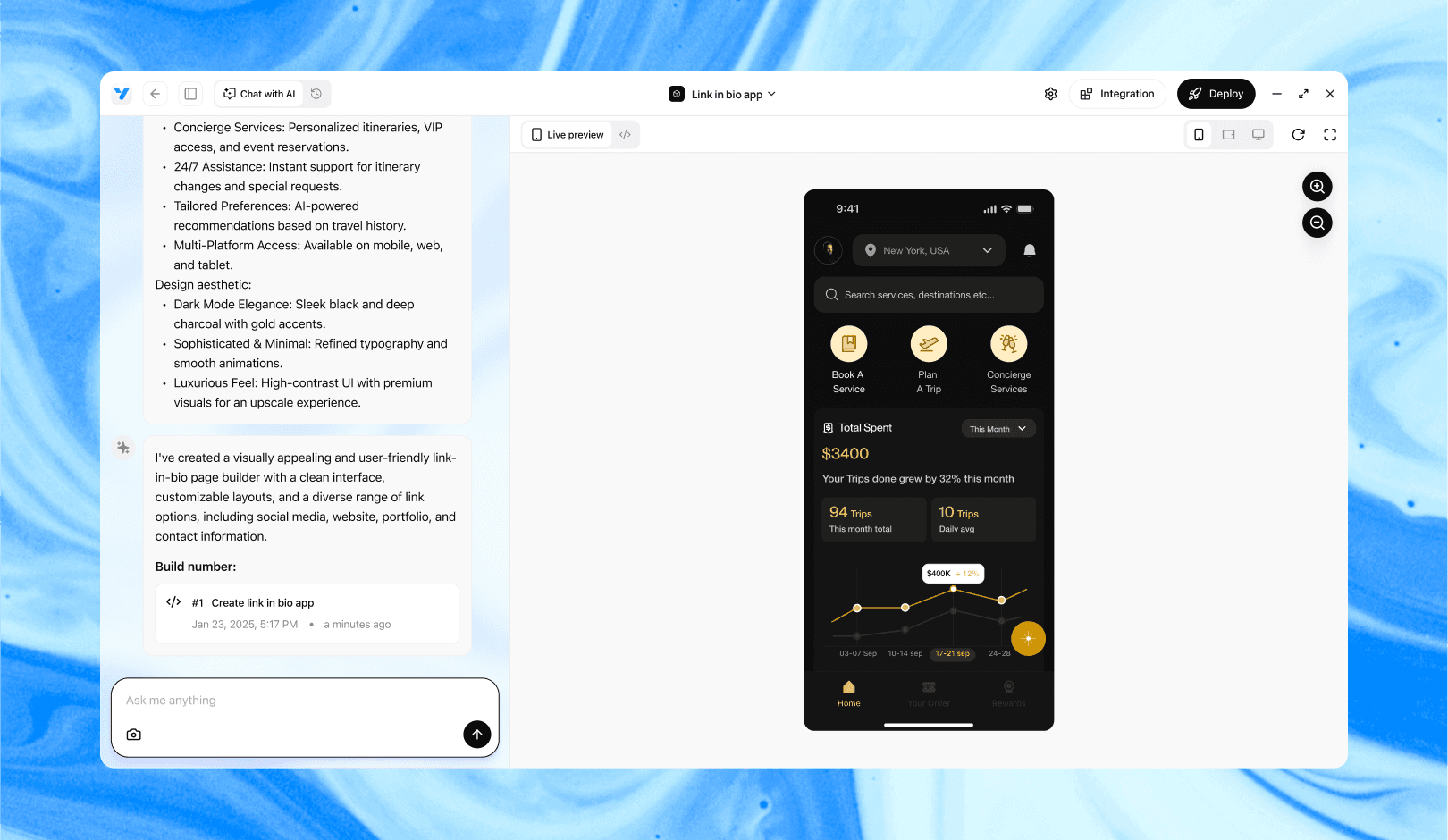
Vibe Studio, powered by Steve’s advanced AI agents, is a revolutionary no-code, conversational platform that empowers users to quickly and efficiently create full-stack Flutter applications integrated seamlessly with Firebase backend services. Ideal for solo founders, startups, and agile engineering teams, Vibe Studio allows users to visually manage and deploy Flutter apps, greatly accelerating the development process. The intuitive conversational interface simplifies complex development tasks, making app creation accessible even for non-coders.

Conclusion

A thorough accessibility audit for Flutter apps goes far beyond attaching semantics. Combine automated tools with manual assistive technology walkthroughs, visual and interaction checks, and performance/focus management. Integrate these checks into your mobile development lifecycle: include them in UI tests, device labs, and PR reviews. Accessibility is measurable and actionable—use this checklist to find and fix issues early, and iterate with real users who rely on assistive technologies.

Introduction

Accessibility audits for Flutter apps must go beyond adding semantics to widgets. Semantics describe UI elements to assistive technologies, but a thorough mobile development audit covers contrast, touch targets, focus order, screen reader behavior, localization, animations, and performance. This tutorial provides a concise checklist and practical checks you can run manually and programmatically in Flutter to find real-world accessibility issues.

Automated Checks: Beyond Semantics

Start with automated tooling to catch low-hanging fruit. Use Flutter's accessibility tools and platform-specific linters, but validate their findings in context.

Checklist items

  • Run flutter analyze and platform accessibility checks (TalkBack and VoiceOver simulators).

  • Verify semantics tree usage but do not rely on it exclusively.

  • Check color contrast programmatically using sampled colors from RenderObjects.

Example: sample a widget's background and text colors during tests to compute contrast ratio.

// Example helper used in integration tests to capture widget color
Color sampleBackgroundColor(RenderObject renderObject) {
  // Obtain paint or layer info; pseudo-code for clarity
  final layer = renderObject.layer;
  return layer?.debugBoundsColor ?? Colors.transparent;
}

Automated checks are fast but will miss interaction flow and timing issues.

Visual And Interaction Checks

Visual readability and interaction quality are core accessibility concerns on mobile development.

Checklist items

  • Contrast: Ensure at least 4.5:1 for normal text and 3:1 for large text. Check app themes and dynamically generated content.

  • Touch Targets: Ensure tappable areas meet recommended minimums (44x44 dp on iOS, 48x48 dp on Android). Expand hit areas if visuals are smaller.

  • Scalable Text: Respect system font scaling. Test with large accessibility font sizes and ensure layout remains usable.

Practical tips

  • Wrap small tappable widgets with GestureDetector behavior using Padding or ConstrainedBox to increase hit area without changing visuals.

  • Use MediaQuery.textScaleFactor in layout tests to verify breakpoints. Verify that buttons still fit and do not overlap.

Assistive Technology Integration

Confirm that assistive tech experiences are coherent, not just present.

Checklist items

  • Screen Reader Flow: Walk through the app with TalkBack and VoiceOver. Pay attention to reading order and meaningful labels.

  • Live Region Updates: For dynamic content (like network-loaded lists or form validation), use semantics.liveRegion true so screen readers announce changes.

  • Focus Management: After dialogs or navigation, set focus to a logical element. Use FocusScope and FocusNode to control focus programmatically.

Code example: announce a message when a form submission completes.

SemanticsService.announce('Form submitted successfully', TextDirection.ltr);

Manual scenarios

  • Submit forms, navigate between screens, and trigger error states while running a screen reader.

  • Test nested navigations and dialogs—ensure focus never gets lost off-screen.

Performance And Focus Management

Accessibility is also about timely feedback and stable focus. Slow updates or unexpected focus jumps break assistive workflows.

Checklist items

  • Keep frame times low. Long frames disrupt VoiceOver/TalkBack timing and can make announcements late or skipped.

  • Avoid layout shifts when content loads. Reserve space for images and list items to prevent focus moving unexpectedly.

  • Manage focus transitions explicitly when routes change or widgets appear/disappear.

Practical code pattern

  • Use WidgetsBinding.instance.addPostFrameCallback to request focus or announce after a new route completes.

Vibe Studio

Vibe Studio, powered by Steve’s advanced AI agents, is a revolutionary no-code, conversational platform that empowers users to quickly and efficiently create full-stack Flutter applications integrated seamlessly with Firebase backend services. Ideal for solo founders, startups, and agile engineering teams, Vibe Studio allows users to visually manage and deploy Flutter apps, greatly accelerating the development process. The intuitive conversational interface simplifies complex development tasks, making app creation accessible even for non-coders.

Conclusion

A thorough accessibility audit for Flutter apps goes far beyond attaching semantics. Combine automated tools with manual assistive technology walkthroughs, visual and interaction checks, and performance/focus management. Integrate these checks into your mobile development lifecycle: include them in UI tests, device labs, and PR reviews. Accessibility is measurable and actionable—use this checklist to find and fix issues early, and iterate with real users who rely on assistive technologies.

Build Flutter Apps Faster with Vibe Studio

Vibe Studio is your AI-powered Flutter development companion. Skip boilerplate, build in real-time, and deploy without hassle. Start creating apps at lightning speed with zero setup.

Other Insights

Join a growing community of builders today

Join a growing community of builders today

Join a growing community of builders today

Join a growing community of builders today

Join a growing community of builders today

28-07 Jackson Ave

Walturn

New York NY 11101 United States

© Steve • All Rights Reserved 2025

28-07 Jackson Ave

Walturn

New York NY 11101 United States

© Steve • All Rights Reserved 2025

28-07 Jackson Ave

Walturn

New York NY 11101 United States

© Steve • All Rights Reserved 2025

28-07 Jackson Ave

Walturn

New York NY 11101 United States

© Steve • All Rights Reserved 2025

28-07 Jackson Ave

Walturn

New York NY 11101 United States

© Steve • All Rights Reserved 2025

28-07 Jackson Ave

Walturn

New York NY 11101 United States

© Steve • All Rights Reserved 2025