Vibe Studio Enterprise
Enterprise Engineering Review System
Human in Loop
This guide walks through the three parts of the Enterprise workflow: approving a change, letting review agents check it first, and finding anything that shipped in Build history.

In this guide
Three chapters. Read them in order the first time, then use this page to look things up.

Chapter 1
Approve or reject a change
See what Vibe Studio built, compare it with what is live, then approve it or send it back.
5 steps
Chapter 2
Review agents
Put a check in front of every merge so nothing reaches your live app unreviewed.
5 steps

Chapter 3
Build history
Every version you have ever shipped, in plain language, with a way back.
2 views
CHAPTER 1
Approve or reject a change
Vibe Studio never edits your live app. Every build lands on its own branch and everything you review is a preview deployed to its own URL. Approving marks the change ready to go. On Enterprise the merge that puts it in front of your users belongs to an engineer, so nothing here can release by accident.
1
Vibe Studio tells you the new version is ready
When a build finishes, a card lands at the bottom of the chat. It repeats what you asked for, says what changed, and shows a green Tested & safe chip once the Flutter build passed and the app booted cleanly in the simulator. That card is the plain-language face of a pull request: Vibe Studio committed the work to a branch and opened the PR.
The simulator keeps running the new version while you decide.
UNDER THE HOOD
push → GitHub webhook · commit on Vibe Studio/feat-signin-brand · PR opened

Tested & safe
Your new version is ready
You asked to reorder links by dragging — it’s working. Keep it, or undo and go back to how it was.
Approve
Reject (undo it)
Current
what you have now
LIVE
New
just built
NEW
2
Put the new version next to the live one
Above the simulator, the preview tabs list every build that is live right now: the change Vibe Studio just made, and any branch or pull request your engineers have open. Main is your production app. Each other tab is a Firebase Hosting preview channel on its own stable URL, so what you click is the real build and not a mockup. Switch between them, or put any two side by side. Approve and reject only appear on changes Vibe Studio built for you. Engineer branches are view-only.
You can even compare two engineer pull requests against each other.
UNDER THE HOOD
preview = Firebase Hosting channel · stable URL · compare any two
3
Approve, or send it back
Approve marks the change ready to go. Reject closes the pull request, deletes the branch and puts the app back exactly as it was. Neither button touches main, so nothing your users see moves at this point and there is no decision here you cannot walk back from.
Rejecting drops you back into the build loop, which is where most changes get better.
UNDER THE HOOD
approve = squash-merge + promote channel · reject = close PR + delete branch
Saved
just now
Version 3 saved
Your links now reorder by dragging. Saved to your draft automatically, undo anytime. Nothing is public until you Publish.
Undo
See version history
Version history
Every change is saved automatically. Restore an earlier one, or publish the current version to your users.
Reorder links by dragging
Now · current draft
Current
New hero image
9:32 AM
Restore
Colour & spacing tweaks
8:10 AM
Restore
First version of your app
Yesterday
Restore
Publish
Only you can see changes until you publish.
4
Look through the saved versions
See version history opens the full list. Every version is there with the time it was saved and a one line description of what changed. The green dot marks the one you are on. Each entry is a commit on the branch, and Restore checks an earlier one back out into your draft.
Restore an earlier version, or send the one you are on for review.
UNDER THE HOOD
each saved version = a commit · Restore = checkout that commit
5
Send it for a final check
On an Enterprise app the button reads Send for final check, and it does what it says: nothing goes live yet. It marks the change approved, fires a Slack message to your engineering team, and drops the pull request into their admin-portal review queue. An engineer merges it to main, or returns it to you with a note on what to change. The merge is the only thing your users ever see.
Returned work comes back with the engineer note attached, ready to iterate and resubmit.
UNDER THE HOOD
approve → Slack webhook → admin review queue → squash-merge to main
✓
Updated
Your are now in the latest version of your app.
Done
CHAPTER 2
Review agents
Review agents are the automated gate. They run against the pull request every time a change is ready, and report pass, fail or pending. A required agent blocks the merge until it passes, an advisory one only leaves a note. They never merge anything themselves. Their job is to catch what a person should not have to.
1
See what changed before anything runs
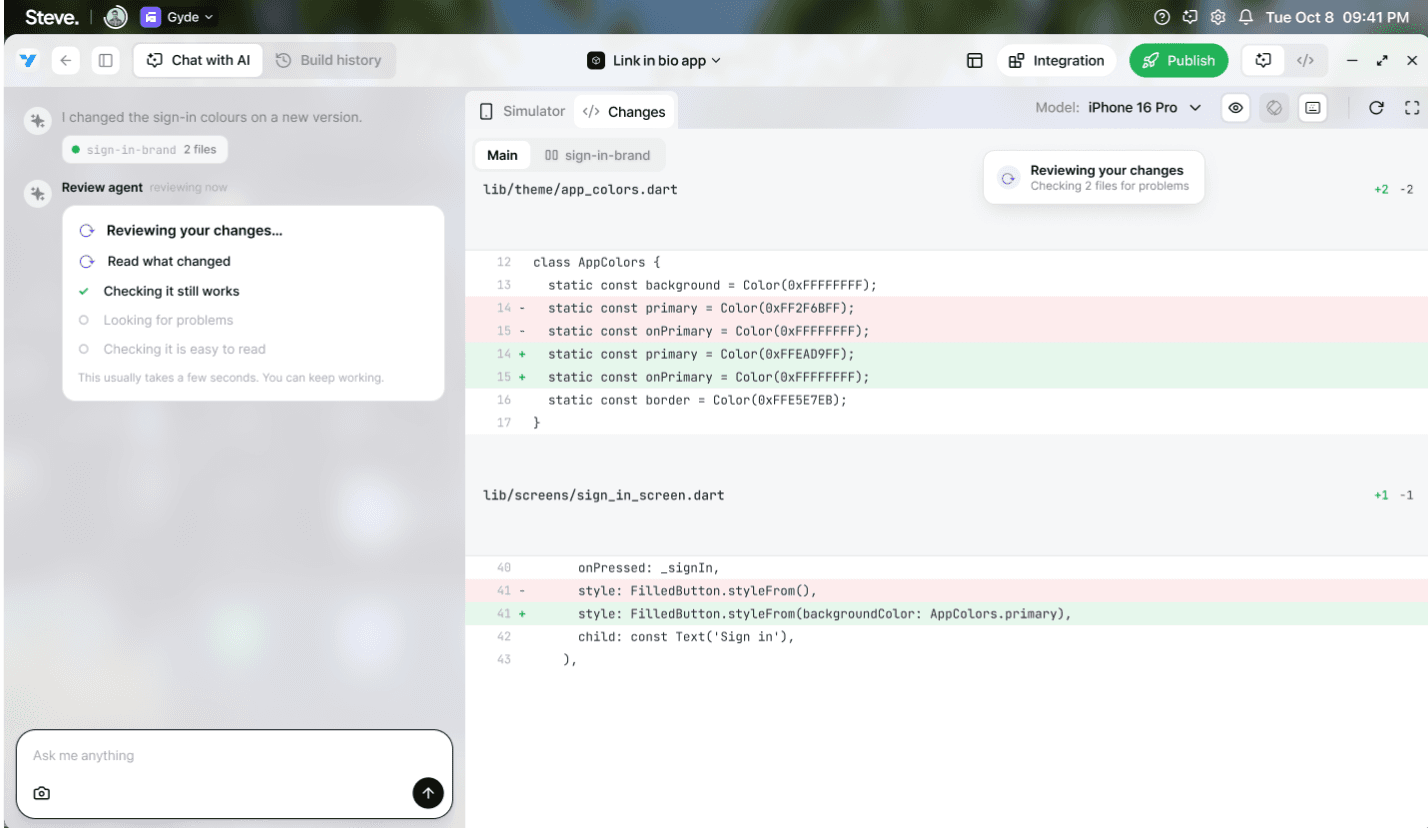
Vibe Studio posts a short summary in the chat: which version the work landed on, which files it touched, and how many lines moved. The panel on the right is the pull request diff, green for added lines and red for removed. Nobody has to read that to make a decision, but it is there when someone wants it.
Press Review changes when you are ready.
UNDER THE HOOD
diff = Dart / Flutter changed files on the PR
lib/theme/app_colors.dart
+2
−2
12
class AppColors {
13
static const background = Color(0xFFFFFFFF);
14
−
static const primary = Color(0xFF2F6BFF);
15
−
static const onPrimary = Color(0xFFFFFFFF);
14
+
static const primary = Color(0xFFEAD9FF);
15
+
static const onPrimary = Color(0xFFFFFFFF);
16
static const border = Color(0xFFE5E7EB);
17
}
lib/screens/sign_in_screen.dart
+1
−1
40
onPressed: _signIn,
41
−
style: FilledButton.styleFrom(),
41
+
style: FilledButton.styleFrom(backgroundColor: AppColors.primary),
42
child: const Text('Sign in'),
43
),
New version
sign-in-brand
+4
−3
◧
lib/theme/app_colors.dart
+2
−2
◧
lib/screens/sign_in_screen.dart
+1
−1
Review changes
A quick check for problems before this can go live.
⟳
Reviewing your changes…
⟳
Read what changed
✓
Checking it still works
○
Looking for problems
○
Checking it is easy to read
This usually takes a few seconds. You can keep working.
⟳
Reviewing your changes
Checking 2 files for problems
2
Let the review agent work
The agent runs on opencode and works through a checklist against the code as it stands on the branch, reporting as it goes: finished, running now, still queued. It takes a moment because it is reading the change, not just checking that the build compiled. Nothing merges while this runs.
The review is never automatic. It starts when someone asks for it.
UNDER THE HOOD
review agent (opencode) runs on the PR head commit
3
Read the finding in plain language
If the agent finds something, it explains what it is, how much it matters, and which file and line it came from. No jargon, no stack traces. Fix it with Vibe Studio pushes another commit to the same branch and re-runs the checks. Talk to a human engineer hands it to a person on your team.
The flagged line is marked in the diff, so you can see it in context.
UNDER THE HOOD
finding → file + line in the diff
lib/theme/app_colors.dart
+2
−2
12
class AppColors {
13
static const background = Color(0xFFFFFFFF);
14
−
static const primary = Color(0xFF2F6BFF);
15
−
static const onPrimary = Color(0xFFFFFFFF);
14
+
static const primary = Color(0xFFEAD9FF);
15
+
static const onPrimary = Color(0xFFFFFFFF);
16
static const border = Color(0xFFE5E7EB);
17
}
lib/screens/sign_in_screen.dart
+1
−1
40
onPressed: _signIn,
41
−
style: FilledButton.styleFrom(),
41
+
style: FilledButton.styleFrom(backgroundColor: AppColors.primary),
42
child: const Text('Sign in'),
43
),
The sign-in button will be hard to read
Accessibility
The new button colour is very light, so the white text on it is hard to see. Some people will not be able to read it.
◧
app_colors.dart · line 14
Vibe Studio can fix this by using a darker colour so the text stands out.
✦
Fix it with Agent
Talk to a human engineer
✓
No problems found
Good to go
✓
Easy to read
✓
Still works the same
✓
No new problems
⎇
Approving merges this version into your live app.
✓
Approve & merge
Reject
Reviewed by AI. You can also ask a human engineer to look.
4
Clear the checks
Once the fix is in and the review runs clean you get an all clear: no problems found, every check passed. Passing the required checks is what unlocks approval. An advisory failure will still let you through, it just travels with the change as a note.
Approve stays disabled until every required check is green.
UNDER THE HOOD
required checks must pass before merge is enabled
5
Approval hands it over, the merge makes it live
Approving clears the automated gate and moves the pull request into your engineers’ review queue, with a Slack notification attached. An engineer merges it to main or returns it with a note. When the merge lands, the preview you have been clicking through becomes the live app, and the chat confirms it with the branch name and where it went.
Merged or returned, it reaches you the moment it happens, no refresh, with a link into Build history.
UNDER THE HOOD
PR squash-merged · channel promoted · Firestore push, no reload
✓
Merged into your live app
Reviewed and approved
⎇
sign-in-brand
→
main
View in Build history
→
CHAPTER 3
Build history
Approvals, rejections, fixes, engineer notes and releases all end up in the same place. Build history is the record: what happened, when, who it was waiting on, and a way back to any earlier version. Every entry is a commit, with the pull request it belonged to and the preview it was deployed to.
1
Open the history next to the chat
Build history sits at the top of the window beside Chat with AI. Opening it swaps the chat rail for a feed of everything that has happened to this app, newest first and grouped by day. The simulator stays where it is, so you can read the history and look at the app at the same time.
Orange is still building, amber needs your review, green is live on main, grey is saved to your draft.
UNDER THE HOOD
feed = commits, PRs, preview deploys, merges
Build history
Search your builds
All
Live
Needs review
Drafts
TODAY
Add a contact button
Building
Vibe Studio is building this for you. You can keep working while it finishes.
Now · about 1 min left
Cancel
Reorder links by dragging
Needs your review
You can now drag your links up and down to put them in any order you like.
2:14 PM · Tested & safe
Review changes
See what changed
New hero image
Live
Added a big photo banner across the top of your page.
11:32 AM · 3 changes
View
Compare
YESTERDAY
Colour & spacing tweaks
Live
Made the text easier to read and evened out the gaps.
4:47 PM · 8 changes
View
Compare
Newsletter sign-up box
Saved
A draft only you can see. Nobody else can see this yet.
1:02 PM · not published
Continue
Backed up to GitHub
6 versions saved on your main branch. Nothing is ever lost — you can go back anytime.
All history
Reorder links by dragging
Needs your review
Made today at 2:14 PM · waiting for your approval
What changed
Simple
Technical
✓
You can now drag any link up or down to put it in the order you want.
✓
The new order is saved for you automatically, no extra steps.
✓
It works the same on a phone and on a computer.
Before it reached you, Vibe Studio checked:
✓
Tested & safe
✓
No new problems
✓
Other links still work
This update, step by step
Vibe Studio tried a few times to get it right. Newest at the top.
Ready for your review
Added drag handles to your links · 2:14 PM
Fixed the spacing while dragging
Second try · 2:06 PM
First attempt
Set up drag-and-drop · 1:52 PM
Try it yourself
The preview on the right is already running this new version — drag a link around and see how it feels.
Switch the preview to
Main
to see how it was before.
Ready for your review
Keep this change to add it to your app, or undo it and go back to how it was.
Keep it
Undo it
Only you can see this until you keep it.
2
Open a version to see the detail
A single entry opens into what actually changed, in the same plain language as the rest of the product, with the steps the build went through underneath. Try it yourself points at the simulator so you can check the change instead of taking the summary on trust. If an engineer returned the change, their note sits here too.
Keep it and Undo it sit at the bottom if the entry is still waiting on you.
UNDER THE HOOD
entry = commit + preview channel URL + merge SHA
Who does what
Three parties touch a change, and only one of them can put it on main.
You, the client
Prompt Vibe Studio, click through the preview, approve or reject. Approving marks a change ready and notifies your team. You have no write access to main, which is what makes approving safe.
cannot merge
Review agents
Run against the pull request whenever a change is sent for review and report pass, fail or pending. Required agents block approval until they pass. Advisory ones travel along as a note.
automated checks on the PR
Your engineers
Get the Slack notification, work the review queue in the admin portal, then merge to main or return the change with a note. They can also build any branch or PR into its own preview for you to see, straight from their dashboard.
the only role that can merge
Nothing reaches main without an engineer merge. Approving is how you say the change is right, not how it ships.
The same thing, in two languages
The product speaks plainly on purpose. If you work with the repository, or you are sitting next to someone who does, here is the same vocabulary on both sides.
What you see
What it is
New version
A branch, cut from main and named for what it does, like Vibe Studio/feat-add-height-input.
Change
A commit on that branch.
Sent for review
A pull request, open and waiting.
Preview
A deploy of the branch on its own stable URL, in a pending state.
Live
main, the branch your users are served from.
Approved
Sent for a final check: the pull request marked ready and queued for an engineer.
Merged
The pull request squash-merged into main, so the preview becomes the live app.
Rejected
The pull request closed and the branch deleted.
Returned to you
The pull request left open with an engineer note attached.
Roll back
An earlier commit restored, and shipped the same way as any other change.
Approving from your phone
The same decisions are on mobile, in the same order. Reviews rarely wait for someone to get back to a desk, so the approve card, the compare view and the publish confirmation all work at phone width, in light and dark.
9:41
Engineering
Chat with AI
Build history
Simulator

Chat with AI
Ask me anything
All done! I added drag-to-reorder for your links. Here’s your new version:
Tested & safe
Your new version is ready
You asked to reorder links by dragging — it’s working. Keep it, or undo and go back to how it was.
Approve
Reject (undo it)
Understanding your idea
Setting things up
Getting started
Checking your app
Making your changes
Saving your work
Polishing a few things
Fixing issues
Solved
Finishing up
Approve or reject
9:41
Engineering
Chat with AI
Build history
Simulator
Chat with AI
Ask me anything
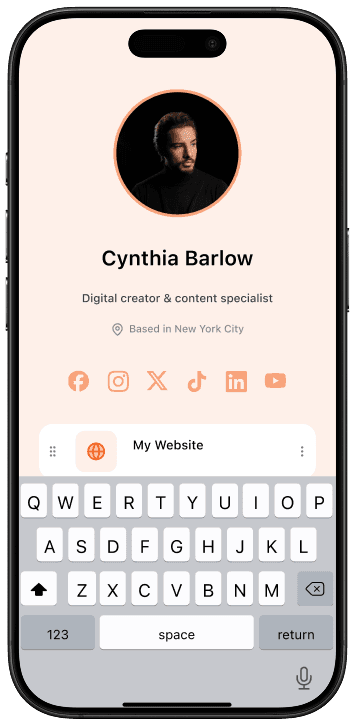
Current
what you have now
LIVE
iPhone 16 Pro
iOS 18.2

Cynthia Barlow
Digital creator & content specialist
Based in New York City
My Website
Latest YouTube Video
Join my Newsletter
Latest Blog Post

return
space
123
M
N
B
V
C
X
Z
L
K
J
H
G
F
D
S
A
P
O
I
U
Y
T
R
E
W
Q

New
just built
NEW
iPhone 16 Pro
iOS 18.2
Cynthia Barlow
Digital creator & content specialist
Based in New York City
My Website
Latest YouTube Video
Join my Newsletter
Latest Blog Post
return
space
123
M
N
B
V
C
X
Z
L
K
J
H
G
F
D
S
A
P
O
I
U
Y
T
R
E
W
Q
Keep the new version?
Tested and safe · you can undo later
Approve
Discard
Compare before you decide
9:41
Engineering
Chat with AI
Build history
Simulator
Chat with AI
Ask me anything
Understanding your idea
Setting things up
Getting started
Checking your app
Making your changes
Saving your work
Polishing a few things
Fixing issues
Solved
Finishing up
✓
Updated
Your are now in the latest version of your app.
Done
Live for your users
Good to know
Nothing is ever lost
Rejected work stays in Build history with everything else. Nothing is deleted from the record, only the branch is, and the commits behind it are still reachable.
Required and advisory
A required agent blocks approval until it passes. An advisory one travels along as a note. Neither of them merges anything, that part belongs to your engineers.
Your work stays off main
Approving saves to your branch and deploys a preview on its own URL. Your users keep seeing main until an engineer merges, which is why you can approve all morning and release once.
It updates on its own
When an engineer merges or returns your change, Vibe Studio shows it right away without a reload. Build history keeps the record either way.
Questions that come up
Why did approving not put my change live?
Because on Enterprise approving is a request, not a release. It marks the pull request ready, notifies your engineers in Slack, and puts it in their review queue. The merge to main is what your users see, and an engineer makes it.
What happens when an engineer returns a change?
It comes back to you with their note attached and the pull request still open. You iterate with Vibe Studio on the same branch and resubmit. Nothing is lost in the handover.
What happens to a change I reject?
The pull request closes and the branch is deleted, so the app goes back to how it was. The attempt stays in Build history, so you can see what was tried and ask for it again.
Can I approve one change and hold another?
Yes. Each change lives on its own branch with its own preview, so they do not queue behind each other. Your engineers merge them in whatever order makes sense.
What do review agents actually check?
Whatever you set them up to check: security, accessibility, mobile layout, performance, brand rules. Each returns pass, fail or pending against the pull request, and you choose which of them are allowed to block approval.
Do I need to read the code to approve?
No. Every screen leads with a plain summary of what changed, and the preview is the real build, so clicking through it tells you more than the diff will. The diff is on the right for whoever wants it.
Who on my team can approve?
Anyone with review rights on the project. Whoever approved is recorded on the entry in Build history along with the time, and the merge is recorded against the engineer who made it.
Do I have to use the chat to make every change?
No. Your engineers develop outside the app builder, and when they push to a branch Vibe Studio rebuilds it and stages the same review card you would get from a chat build. You review it the same way.
Can I add a teammate who has no Vibe Studio account yet?
Yes. Grant access by their email and they get an invitation. Their access turns on the moment they sign up, so you do not have to come back and do it again.